



Sitemap Could Not Be Read? How To Fix Sitemap Errors


If Google Search Console keeps showing the sitemap could not be read error, even though the sitemap looks fine, the issue usually sits somewhere in accessibility, crawl behaviour, or server response.
That’s the frustrating part. Sometimes the sitemap genuinely breaks. Other times, Google temporarily struggles to fetch or process it correctly.
We’ve dealt with this ourselves on FlyPost. The sitemap would occasionally fail, then work again after resubmission, despite nothing obvious changing on the site. That’s why this issue catches so many people out.
The quick version
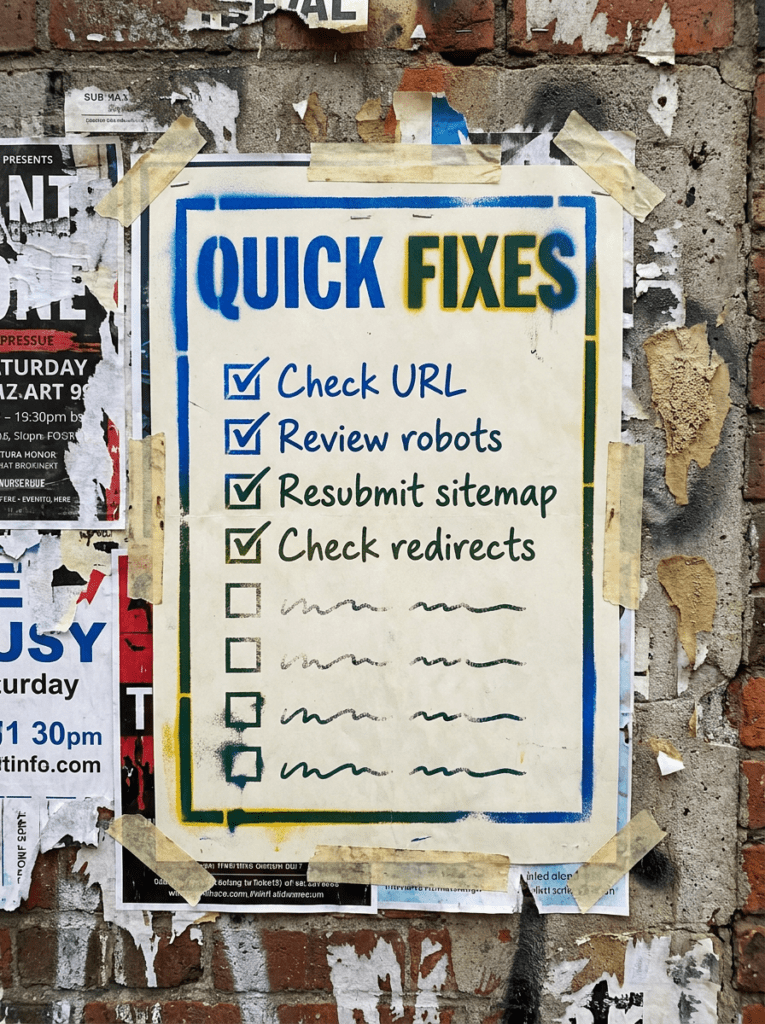
If you only have 20 minutes, start here. These are the fastest things to check when Search Console shows sitemap could not be read.
- Make sure the sitemap URL loads normally in a browser
- Check for redirects or blocked access
- Review robots.txt and security settings
- Re-submit the sitemap in Search Console
- Wait before assuming the site has broken
If that already feels like a lot, do not worry. Below is the full process in the right order.
Not sure where to start?
Most people assume the sitemap itself has broken when Search Console shows sitemap could not be read.
Sometimes it is. Often it isn’t.
Google Search Console can occasionally struggle to fetch perfectly valid sitemaps because of temporary crawl issues, redirects, CDN behaviour, security settings, or server instability.
The better place to start is checking accessibility and consistency before making major changes to the site.

Our full guide: Sitemap Could Not Be Read
Work through this in order. Most sitemap issues are caused by access problems or conflicting signals rather than the XML file itself.
Step 1: Check the sitemap URL directly
- Open the sitemap in a browser
- Make sure it loads normally
- Look for formatting or loading errors
- Test both HTTP and HTTPS versions
- Confirm the sitemap is publicly accessible
If the sitemap cannot load consistently, Google will struggle too.
Step 2: Check for redirects
- Avoid unnecessary redirect chains
- Make sure the submitted URL is the final URL
- Keep the sitemap URL clean and direct
- Avoid redirecting between versions
- Use one consistent sitemap location
Redirect confusion is a common cause of sitemap fetch problems.
Step 3: Review robots.txt
- List the sitemap correctly
- Check that Google can reach important areas
- Avoid accidental disallow rules
- Review plugin-generated robots settings
- Keep the setup simple where possible
Robots mistakes quietly break a lot of indexing setups.
Step 4: Review CDN and security settings
- Check firewall and bot protection tools
- Review rate-limiting settings
- Confirm Googlebot can access the sitemap
- Test from outside your own network
- Avoid aggressive anti-bot setups
This was one of the biggest pain points we saw ourselves. Everything looked fine manually, but occasional fetch failures still appeared in Search Console because of hosting and security behaviour.
Step 5: Check your sitemap plugin or generator
- Make sure the sitemap updates properly
- Check for plugin conflicts
- Confirm URLs are valid
- Avoid bloated or broken sitemap files
- Keep sitemap structure clean
Sometimes the sitemap generator causes the issue, not the sitemap file itself.
Step 6: Re-submit the sitemap carefully
- Remove outdated sitemap entries
- Submit only the correct sitemap version
- Avoid constant re-submission loops
- Give Google time to process changes
- Monitor the response over time
Repeatedly re-submitting the sitemap every few minutes usually does not fix anything.
Step 7: Check wider crawl and indexing issues
- Review indexing reports in Search Console
- Look for crawl anomalies
- Check server uptime and response times
- Review excluded pages
- Watch for spikes in crawl errors
Sitemap issues are sometimes symptoms of wider crawl problems. Google’s own documentation explains that sitemap processing can fail for several reasons, including inaccessible files, formatting issues, or temporary fetch problems.
Step 8: Monitor before overreacting
- Watch for whether the issue resolves itself
- Check if indexing is actually affected
- Avoid making unnecessary technical changes
- Keep monitoring crawl behaviour
- Focus on stable long-term fixes
Some sitemap errors are temporary. Panic-fixing everything usually creates more problems.
Common mistakes
These issues usually sit behind sitemap could not be read, especially when everything looks fine on the surface.
- Submitting redirected sitemap URLs
- Blocking bots accidentally
- Using unstable sitemap plugins
- Overcomplicating robots.txt
- Ignoring server or CDN behaviour
- Re-submitting the sitemap constantly
- Assuming every Google error means the sitemap has broken
DIY lane vs done for you lane
DIY lane:
To fix sitemap could not be read yourself, check accessibility, redirects, robots.txt, and whether Googlebot can consistently fetch the sitemap.
Done for you lane:
If you want the quicker route, we can help diagnose crawl and sitemap issues properly without causing bigger indexing problems in the process.
Related Guides on the wall
These guides help you fix the wider crawl and indexing signals around sitemap could not be read.
- Read Crawled But Not Indexed to diagnose indexing-related crawl problems
- Use Why Am I Not Ranking On Google to identify wider visibility issues
- Read Does Duplicate Content Hurt SEO if Google is struggling to understand competing URLs or signals
sitemap could not be read FAQs

Usually because Google cannot fetch or process the sitemap correctly due to redirects, blocked access, temporary crawl problems, or formatting issues.
Yes. We’ve seen cases where the sitemap remained accessible and indexing continued normally despite temporary fetch errors appearing in Search Console.
No. Constantly re-submitting rarely fixes the root problem and can lead to unnecessary confusion while debugging.
Start by checking whether the sitemap loads properly in a browser and whether Googlebot can access it consistently.

Quick tip
Rather have us handle this instead of DIY-ing it? That is literally the job.



Straight talking marketing that gets results.
No pressure, no jargon. Just a clear look at what’s stopping your site from bringing in more enquiries.
Get my free website reviewLike this guide?
Tell Google you want more like it. One click, no sign-up, and FlyPost guides start showing up more often in your search results.
Add FlyPost as a preferred sourceTakes you to Google, then straight back here.